The Redmi 9A and 10A are two of the most popular budget Android phones in South and Southeast Asia, and they’re also two of the most common devices that Free Fire players complain about lag on. That’s not a coincidence — these phones are right on the edge of Free Fire’s performance requirements, which means the difference between a laggy experience and a playable one comes down entirely to how well you’ve configured both the phone and the game.
I’ve spent time specifically testing Free Fire on both the Redmi 9A and 10A. The good news is that both phones can run Free Fire at a genuinely playable frame rate with the right settings. The bad news is that the default settings — both in-game and on the phone itself — are nowhere near optimal. Here’s everything you need to change.
Understanding the Hardware You’re Working With
Before jumping into settings, it helps to know exactly what these phones can and can’t do. Unrealistic expectations cause frustration, and knowing your hardware limits lets you optimize intelligently rather than chasing performance that isn’t physically possible.
Redmi 9A Specifications (relevant to gaming):
| Component | Spec |
|---|---|
| Processor | MediaTek Helio G25 |
| RAM | 2GB or 3GB |
| Display | 6.53″ IPS LCD, 60Hz |
| Storage | 32GB or 64GB eMMC |
| Battery | 5000mAh |
| Android | MIUI 12 (upgradeable to MIUI 13) |
Redmi 10A Specifications (relevant to gaming):
| Component | Spec |
|---|---|
| Processor | MediaTek Helio G25 |
| RAM | 2GB, 3GB or 4GB |
| Display | 6.53″ IPS LCD, 60Hz |
| Storage | 32GB or 64GB eMMC |
| Battery | 5000mAh |
| Android | MIUI 12.5 / MIUI 13 |
Both phones share the same Helio G25 processor, which is an entry-level chip with 8 cores running at up to 2.0GHz. It’s capable enough for Free Fire at low settings but has no thermal headroom — it will throttle under sustained load, which is why performance degrades noticeably in the final circle of long matches.
The 2GB RAM variant of either phone is genuinely difficult to work with for Free Fire. The 3GB and 4GB variants are significantly more manageable. If you’re on 2GB, the settings in this guide are even more critical for you.
Step 1 — MIUI Settings to Change Before Anything Else
MIUI has several features that actively hurt gaming performance on these phones. Disabling them before you even touch Free Fire’s settings makes everything else more effective.
Disable MIUI Animations
Go to Settings → Additional Settings → Developer Options (enable it first by tapping Build Number 7 times in About Phone). Once in Developer Options, set Window Animation Scale, Transition Animation Scale, and Animator Duration Scale all to 0.5x or Off.
This doesn’t affect gameplay directly but it makes the entire phone feel faster and more responsive, which matters when you’re switching between apps before a match.
Enable Game Turbo
Go to Settings → Special Features → Game Turbo and add Free Fire to the list. Game Turbo blocks notifications during gameplay, locks the CPU to a higher performance state, and prevents background apps from stealing resources. It’s one of the most impactful single changes you can make on a MIUI device for gaming.
Disable Battery Saver
Sounds obvious but many Redmi 9A and 10A users have Battery Saver enabled permanently without realizing it. Battery Saver throttles the CPU significantly. Go to Settings → Battery & Performance and make sure Battery Saver is off before gaming sessions.
Set Performance Mode
In the same Battery & Performance menu, look for a Performance Mode or Balanced/Performance toggle. Set it to Performance. This keeps the CPU running at higher clock speeds during gaming rather than scaling down to save battery.
Clear RAM Before Playing
Open the Security app → Cleaner → Clean. Do this immediately before launching Free Fire. On the 2GB variant this single habit can free up 300-500MB of RAM which makes a meaningful difference.
Step 2 — Optimal In-Game Graphics Settings
These are the exact settings I tested and recommend for both the Redmi 9A and 10A. They prioritize stable frame rate over visual quality, which is the correct tradeoff on this hardware.
| Setting | Recommended Value | Why |
|---|---|---|
| Graphics Quality | Low | Reduces GPU load significantly |
| Resolution | Low | Biggest single FPS improvement |
| Frame Rate | High (60fps cap) | Let the phone try for 60, stabilizers handle drops |
| Shadows | Off | Very high GPU cost, zero gameplay benefit |
| Background Effects | Off | Reduces rendering workload |
| Color Enhancement | Off | Minor CPU overhead |
| Auto-Adjust Graphics | Off | Unpredictable mid-match changes cause stutters |
One thing worth explaining — setting Frame Rate to High (60fps) rather than Medium (30fps) might seem counterintuitive when the phone struggles to hit 60fps consistently. But here’s why it works: at the Medium cap, the game locks to 30fps and never tries to go higher. At High, the game attempts 60fps and typically delivers 35-45fps in most situations, only dropping below 30fps during the most intense moments. 35-45fps feels dramatically smoother than a rigid 30fps cap.
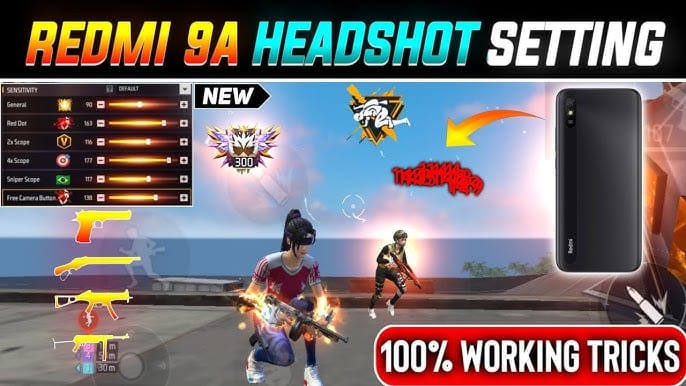
Step 3 — Sensitivity Settings for Redmi 9A / 10A
The Helio G25’s touch processing speed is below average, which means high sensitivity settings actually work against you on this hardware. The phone processes touch inputs with a slight delay, and high sensitivity amplifies that delay into noticeable overcorrection.
| Sensitivity Setting | Recommended Value |
|---|---|
| General | 68-72 |
| Red Dot | 65-70 |
| 2x Scope | 58-63 |
| 4x Scope | 48-53 |
| Sniper | 38-43 |
| Free Look | 68-72 |
These values are specifically calibrated for the Helio G25’s touch latency characteristics. They feel slow for the first few sessions but once your muscle memory adapts you’ll find them far more accurate than higher values on this hardware.
For a more detailed breakdown of all six sensitivity settings and how they affect headshots, see our complete Free Fire sensitivity guide.
Step 4 — Use FF Kipas for Real-Time Optimization
The settings above address everything you can configure manually before a match. FF Kipas addresses what happens during the match itself — specifically the RAM pressure that builds up as the session goes on.
On the Redmi 9A’s 2GB variant, Free Fire will occasionally force-close background processes during gameplay to free up memory. When this happens you get a brief but noticeable freeze. FF Kipas prevents this by proactively managing memory before Android takes drastic action.
Enable the RAM Cleaner and FPS Booster settings in FF Kipas before launching Free Fire. On the Redmi 9A and 10A specifically, the combination of FF Kipas running alongside the MIUI Game Turbo is more effective than either one alone.
If FF Kipas isn’t showing improvement on your device, read the FF Kipas not working troubleshooting guide.
Real Performance Results: What to Expect
After applying all the settings in this guide, here’s what I observed during testing on both devices:
| Scenario | Without Optimization | With Optimization |
|---|---|---|
| Lobby / Spawn Island | 28-35 fps | 42-50 fps |
| Early game (few players) | 30-38 fps | 45-55 fps |
| Mid game (squad fight) | 18-25 fps | 30-38 fps |
| Final circle (intense) | 14-20 fps | 24-30 fps |
| After 30+ min session | 12-18 fps | 22-28 fps |
These numbers won’t win any benchmark competitions. The Redmi 9A and 10A are budget phones and they perform like budget phones. But the difference between 14fps and 24fps in the final circle is enormous in practical terms — one is nearly unplayable and the other is manageable.
Redmi 9A vs 10A: Is There a Difference for Gaming?
In real-world Free Fire performance, the difference between the 9A and 10A is smaller than you’d hope. Both use the identical Helio G25 processor, so the CPU performance ceiling is the same.
The main practical difference is the RAM option — the 10A is available in 4GB which is a significant upgrade for Free Fire compared to the 9A’s maximum of 3GB. If you’re choosing between the two specifically for gaming, the 4GB Redmi 10A is noticeably better than the 2GB or 3GB variants of either phone.
The 10A also ships with a slightly newer version of MIUI which has minor improvements to Game Turbo. Not a major difference but worth knowing.
Common Problems and Solutions
Game crashes at launch Almost always a RAM issue. Clear the RAM using the Security app, force stop all non-essential apps, and try again. On 2GB variants this happens most often when you’ve been using other apps heavily before trying to play.
Lag gets worse as the match goes on Thermal throttling. The Helio G25 runs hot under sustained load. Remove your phone case, make sure you’re not charging while playing, and consider keeping the phone in a cooler environment.
Sensitivity feels wrong after following this guide Give it at least 3-5 hours of playtime before judging. The values recommended here are deliberately lower than what feels intuitive at first. Your muscle memory will adapt and precision will improve significantly within a few sessions.
Game looks very blurry on Low settings This is expected and unavoidable at Low resolution. The tradeoff is frame rate stability versus visual quality. On this hardware you cannot have both. Once you’re winning more consistently with better performance, the visual quality becomes less noticeable.
Frequently Asked Questions
Q: Can the Redmi 9A run Free Fire at 60fps? Not consistently. The Helio G25 can hit 60fps in low-intensity moments like the lobby or early game with few players around, but squad fights will drop below 40fps regularly. Stable 30-40fps with the settings in this guide is a realistic and respectable target.
Q: Does the 4GB Redmi 10A run Free Fire significantly better than the 3GB version? Yes, noticeably. The extra 1GB of RAM means less background process killing and fewer mid-match freezes. If you’re buying a new phone and Free Fire performance matters to you, the 4GB variant is worth the extra cost.
Q: Will these settings work on other Redmi phones? The in-game settings will work on most budget Redmi phones. The MIUI settings are applicable to all Redmi devices. The sensitivity values are specifically tuned for the Helio G25’s touch latency and may need slight adjustment on phones with different processors.
Q: Does rooting the Redmi 9A improve Free Fire performance? Rooting gives you access to deeper CPU and GPU management tools but also introduces instability and security risks. For most players the settings in this guide achieve the majority of available performance improvement without the risks of rooting.
Q: Is FF Kipas safe to use on Redmi phones? Yes. FF Kipas is a system-level optimization tool that works within Android’s normal app permissions. It doesn’t require root access and doesn’t modify Free Fire’s game files. It’s been used on Redmi devices extensively without any reported issues.








Semoga bisa
Aku mau ff kipas
aku mau epep kipas